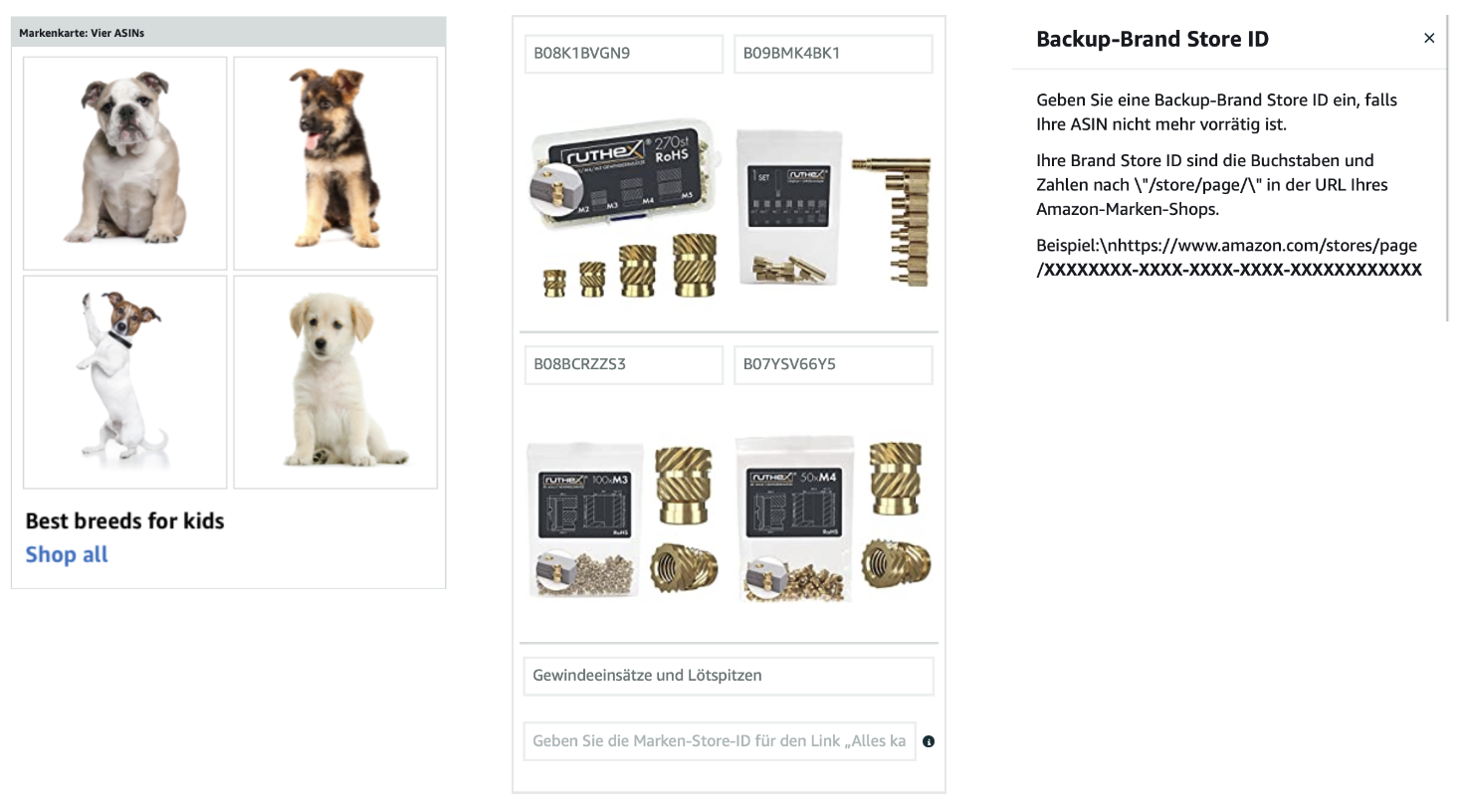
Would you like to bring your brand closer to potential customers and show what makes your brand unique? Then the Amazon brand story, also known as brand story, is just the right thing for you. Thanks to the large banner, which is displayed over the extended product information on the product detail page, the brand story is an absolute eye-catcher. In addition to building trust with potential customers, the ability to link to other products pursues the clear goal of cross-selling. With additional brand information and appealing visual content, you not only differentiate yourself from no-name products and competitors, but also ensure a better brand understanding. The individually selectable modules contain team pictures, texts, short Q&A's or links to products or your own Amazon store.
The brand story is created in Amazon Seller Central via the A+ content manager and can be applied to individual products as well as the entire product range.
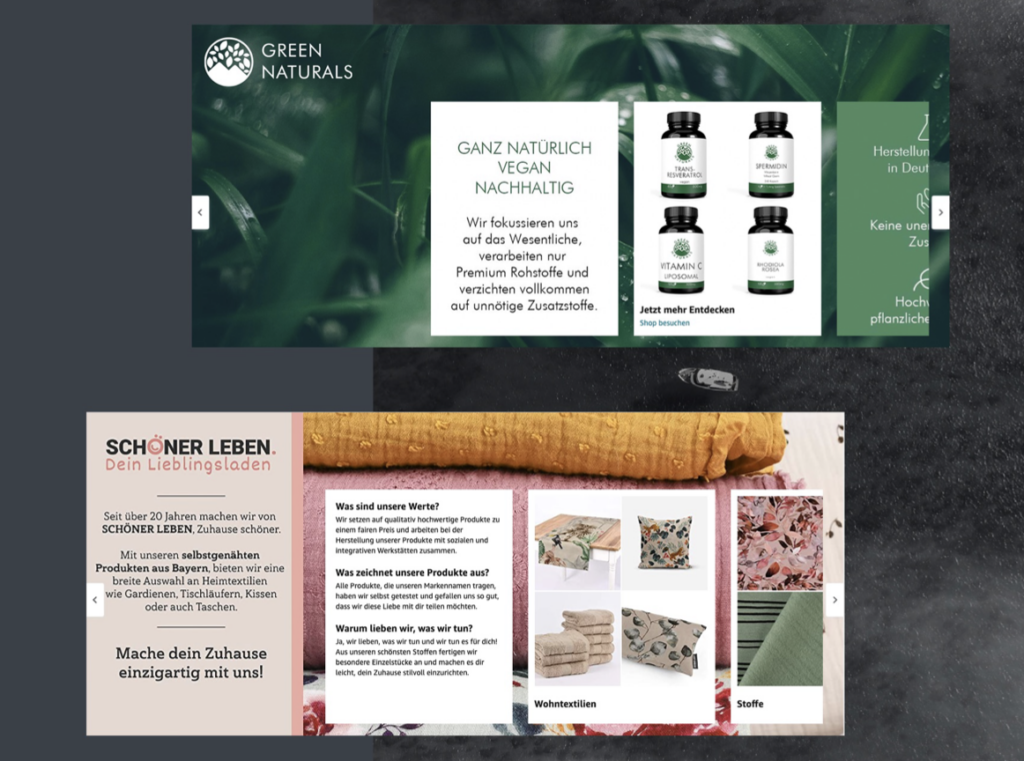
Create a brand story
Creating a brand hero: image with logo
Creating the brand story starts with the “brand hero.” This module can be understood as a background image of the brand story. When creating this module, care should therefore be taken to ensure that the brand logo or texts that have already been placed are easy to read in their respective basic position.
Desktop version:
- Minimum layout size: 1464px x 625px
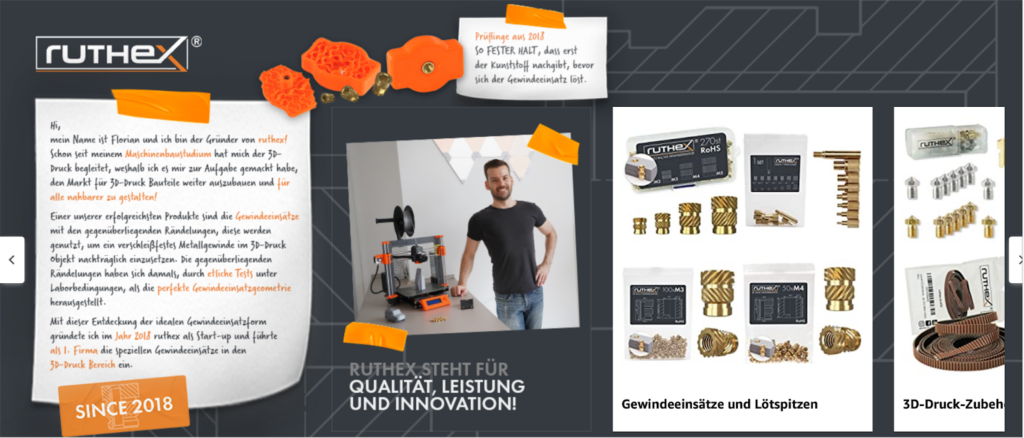
Mobile version:
- Minimum layout size: 463px x 625px
When using the mobile view, it is also recommended to place an arrow. This notifies the user that there are other modules and encourages them to swipe through the brand story.

2. Selecting the modules
In the next step, you can choose between four modules:
- “Brand card: questions”
- “Brand card: info”
- “Brand card: media asset”
- “Brand card: 4 ASINs”
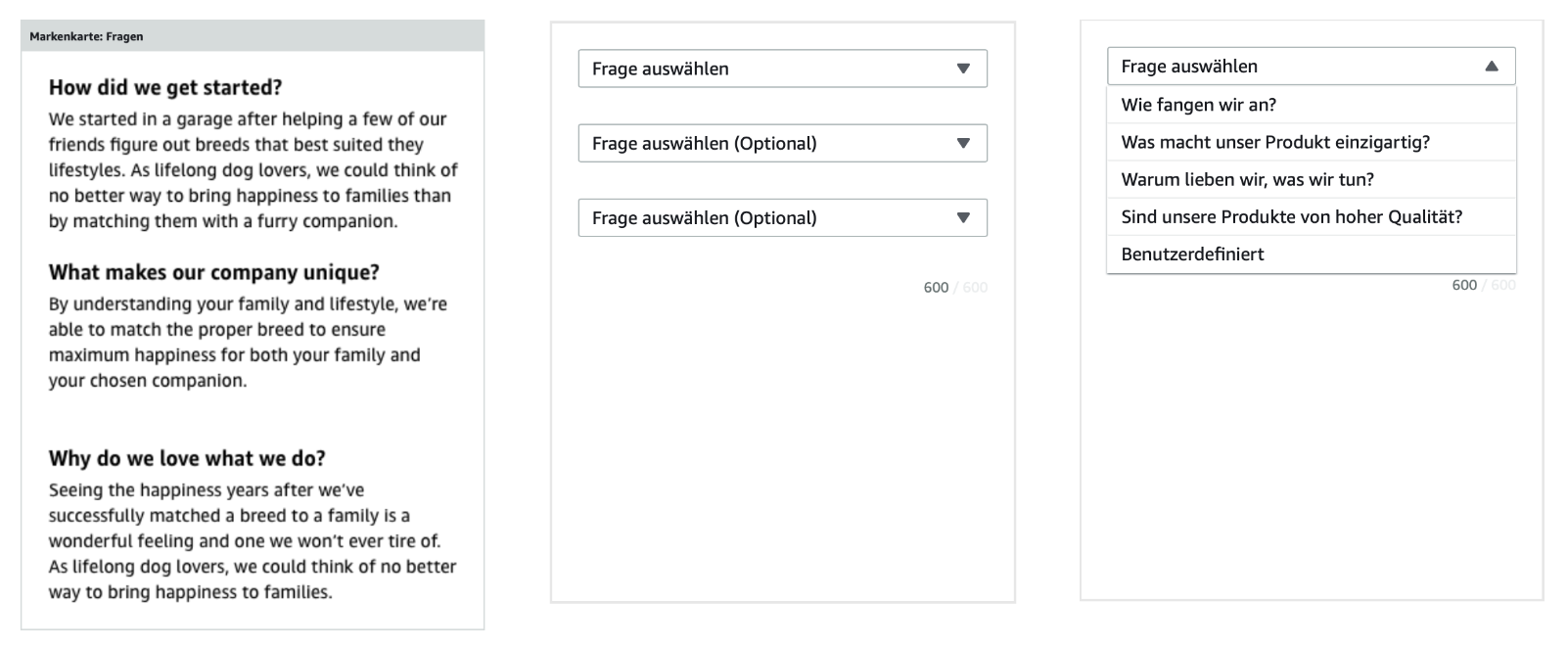
“Brand card: questions”
This module is similar to a short Q&A, where up to three questions about the brand can be answered. You can choose between four predefined questions or create your own custom questions. However, you should be brief when answering your questions. A total of 600 characters are available for the entire brand card block.
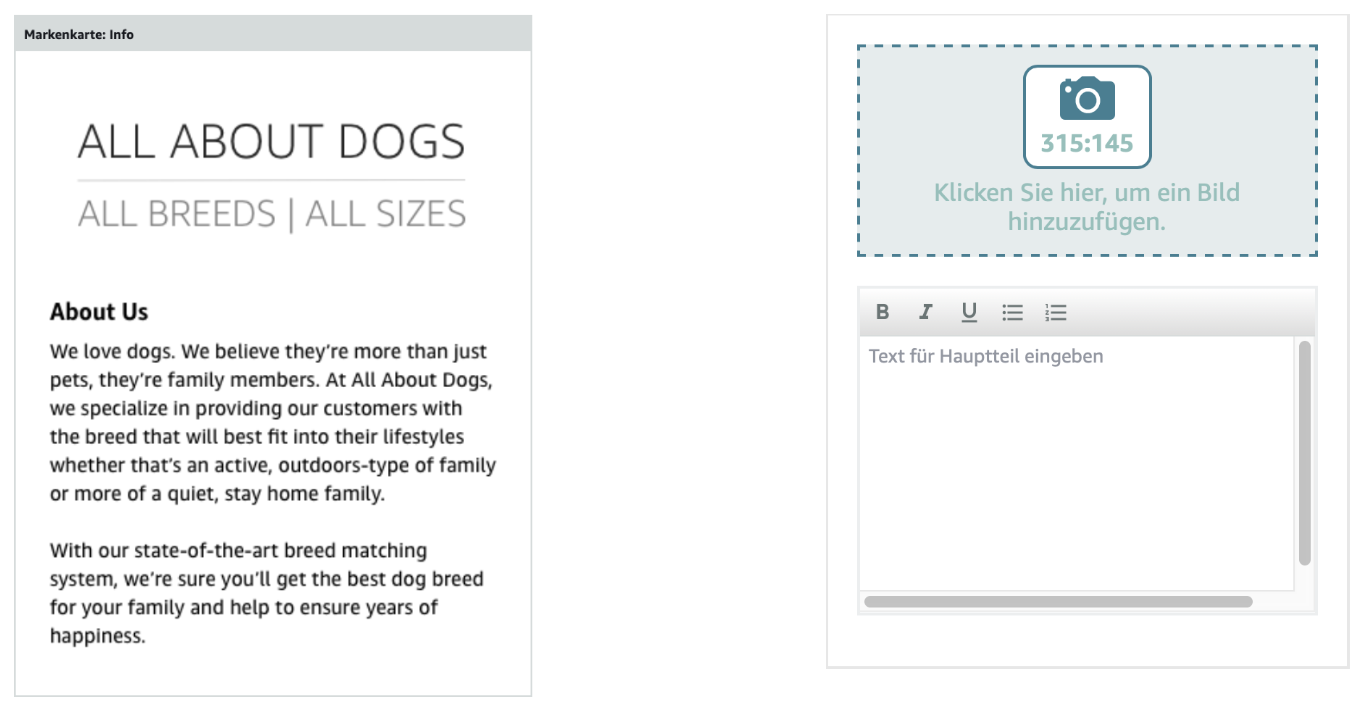
“Brand card: info”
The info module allows you to combine image and text in one block. For example, you can place the brand logo or a team image here. Please note that the minimum image size of 315px x 145px is maintained. In the accompanying text, you can summarize the most important information about your brand. The maximum number of characters to be set here is 450.
3. “Brand card: media asset”
Of all four modules, the media asset probably offers the greatest scope for design. Here you can place images or graphics that take up the entire module. This gives you the opportunity to create content in your company design and incorporate it into the brand story. A heading and a description can also be added to this image content. In the final view, this text content stretches across the bottom of your image.

4. “Brand card: 4 ASINs”
With the last module, you can link to a total of four products in your range and your Amazon Store. When you enter the selected ASINs, Amazon automatically places the respective main image in the product tile. However, you also have the option to create custom images for the respective 4 ASINs. You can easily upload them in a minimum size of 166px x 182px and add appropriate image keywords.
Tip: With an extensive range of products, it is a good idea to place several brand cards one after the other in order to better structure the range for the viewer. You can also link to the appropriate subpage of your Amazon store for each brand card.